‹ Blog · October 25, 2026
Graphics card for Studio and the low memory mode
Which graphics card does Studio run on, how much space do the models take and what happens if your card is not enough? With numbers and with the limits.
Generating images and video locally puts load on the graphics card. This post covers what Studio needs, what happens when your card is not enough, and what we still do not know.
The app interface is currently in Turkish, so screen names are given in English with the Turkish label in parentheses where it helps.
Minimum requirements
- Operating system: Windows. Local generation is not supported on macOS and Linux; Studio refuses to install models on those computers from the start.
- Graphics card: NVIDIA. On a computer without an NVIDIA card there is no local generation.
- Video memory (VRAM), RAM and free disk: every model has its own threshold. A model that does not meet the threshold is marked "Not supported" with the reason.
Agent X itself and your agents have no such requirement; these conditions apply only to the local generation models.
How much space the models take
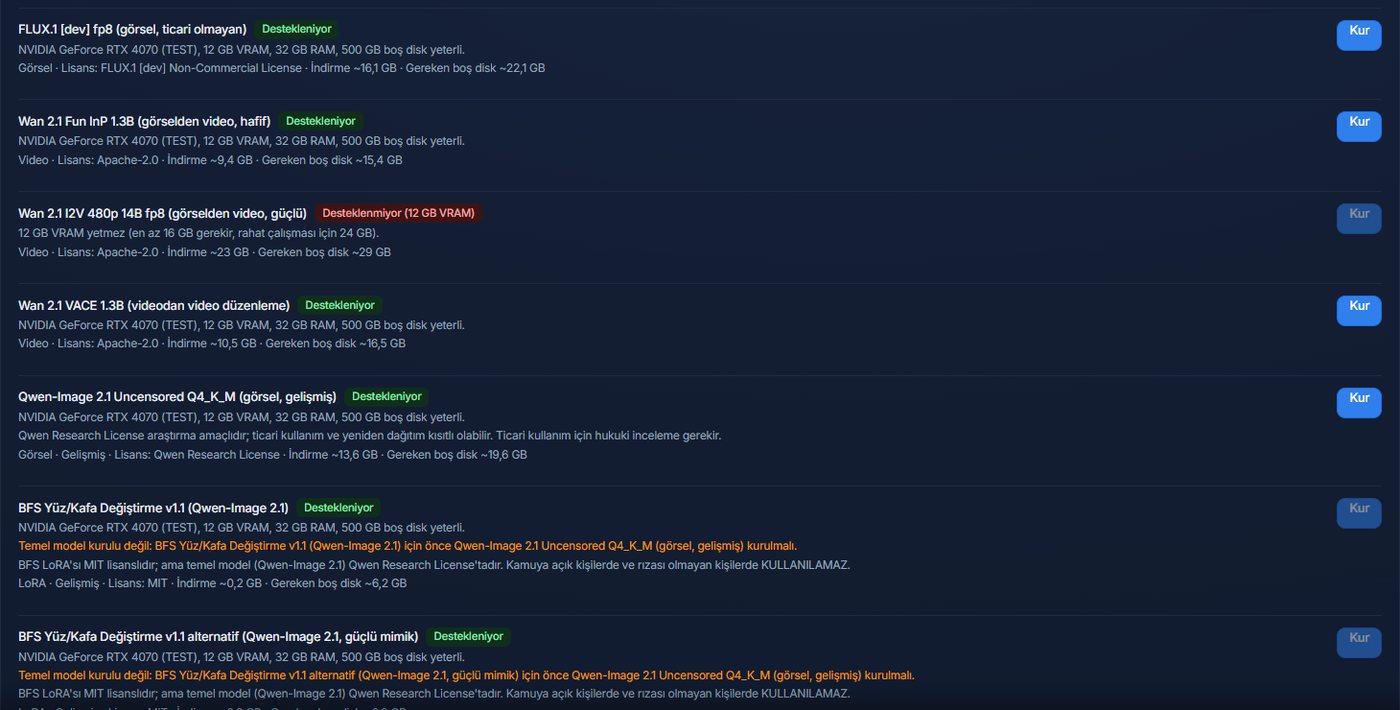
The numbers below are approximate values from the model list of version 0.1.33; the catalog can change between versions. "Download" is the size of the files and "free disk" is the space needed during installation.
- FLUX.1 [schnell] fp8 (image): about 16 GB download, 22 GB free disk. It needs at least 8 GB of VRAM, and 12 GB is recommended for comfortable use.
- Wan 2.1 Fun InP 1.3B (image to video, light): about 9.4 GB download, 15 GB free disk.
- Wan 2.1 T2V 1.3B (text to video): about 9.2 GB download, 15 GB free disk.
- Wan 2.1 VACE 1.3B (video to video): about 10.5 GB download, 16.5 GB free disk.
- Wan 2.1 I2V 480p 14B fp8 (image to video, powerful): about 23 GB download, 29 GB free disk. It needs at least 16 GB of VRAM, and 24 GB is recommended for comfortable use.
Next to a model you see a label such as "Supported" or "Not supported (12 GB VRAM)"; the label is calculated for your card.
If your card is not enough: low memory mode
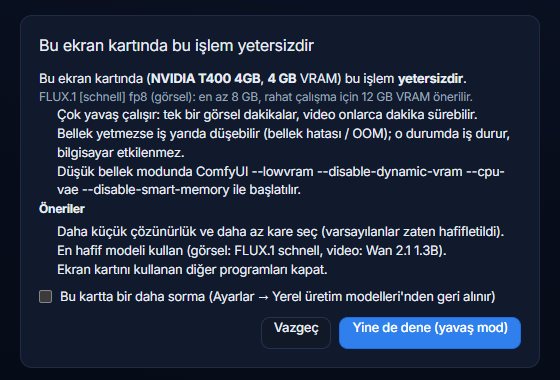
In 0.1.33 you cannot install a model whose requirement is above your card. A change prepared for the next version, 0.1.34, relaxes this: if you have an NVIDIA card but the VRAM is not enough, Studio tries to work in "low memory mode (slow)". That version is not released yet; when it is, it will appear on the Download page.
What low memory mode involves:
- First a warning screen appears: your card's name, its VRAM, the VRAM the model recommends and a note that "this operation is insufficient on this graphics card". The default option is Cancel; to continue you have to say "Try anyway (slow mode)".
- The job runs very slowly: according to the warning, a single image can take minutes and a video can take tens of minutes.
- If memory runs out, the job can fail halfway (a memory error). In that case the job stops and your computer is not affected.
- Recommended: a smaller resolution, fewer frames, the lightest model (FLUX.1 schnell for images, Wan 2.1 1.3B for video) and closing other programs that use the graphics card.
- You can tick "Do not ask again on this card" and undo the decision later from Settings.
What we measured and what we did not
We do not promise great performance from this mode:
- On a 4 GB NVIDIA T400 on the development machine we tried a small image model (Stable Diffusion 1.5, 512×512, 15 steps) with low memory flags in a real ComfyUI. There was no memory error and the job finished. But with default precision this card family produced a black output; when full precision (fp32) was turned on, a real image came out (63 seconds). That is why fp32 is used for cards like the GTX 16xx and the T400; the warning text says that it raises the memory need.
- We did not try catalog models such as FLUX and Wan on this 4 GB card. So we are not saying "video can be generated on a 4 GB card". Low memory mode is a door to try, not a guarantee.
- We give no time figure because we did not measure one. It varies a lot with your card, the model, the resolution and the frame count.
Which model to choose when
- If you only want images: start with FLUX.1 [schnell] fp8; it is Apache-2.0 licensed and allows commercial use.
- For a first video attempt: the Wan 2.1 1.3B family (separate models for text to video, image to video and video to video) is the lightest option and needs far less memory than the 14B models.
- If you want more powerful video: the Wan 2.1 14B models need at least 16 GB of VRAM; 24 GB is recommended for comfortable use.
- Face swap: not available in this version. The base model it relies on is not licensed for commercial use, so we did not include it in the standard product.
You do not have to install everything at once. Install only the model you will use and add the rest later.
What to do
If you want to generate video regularly, an NVIDIA card with 12 GB of VRAM or more is a realistic start; 24 GB cards open the more powerful models. If you are not sure, install Agent X and look at the Studio settings: what your card supports is written there. Setup and first sign-in helps with installing.