‹ Blog · October 13, 2026
Setup and first sign-in: account, download, connect
Three steps to start with Agent X: create an account, download and verify the app, sign in. Includes the Windows warning, the offline window and the device count you meet on first launch.
Starting with Agent X takes three steps: create an account, download the app, sign in. This post walks through each step in order and states plainly what you may run into on first launch (the Windows warning, the offline working time, the device count).
Before you start
- Operating system: Windows 10 or 11. macOS and Linux are not supported for now.
- Internet: at sign-in the app is verified against your site account, so you need a connection.
- Your own account: the agents work with your own Claude Code or Codex account. You connect it after installing; the details are in Connecting your Claude and Codex account.
The app interface is currently in Turkish, so screen names below are given in English with the Turkish label in parentheses where it helps.
1. Create an account
On the site, open the sign-up page and create an account with your email address and a password of at least 10 characters. Opening an account is free and does not ask for card details. Then you pick a plan; the subscription is tied to your account (Plans and license). If you forget your password, use the reset link on the sign-in page.
2. Download and verify the app
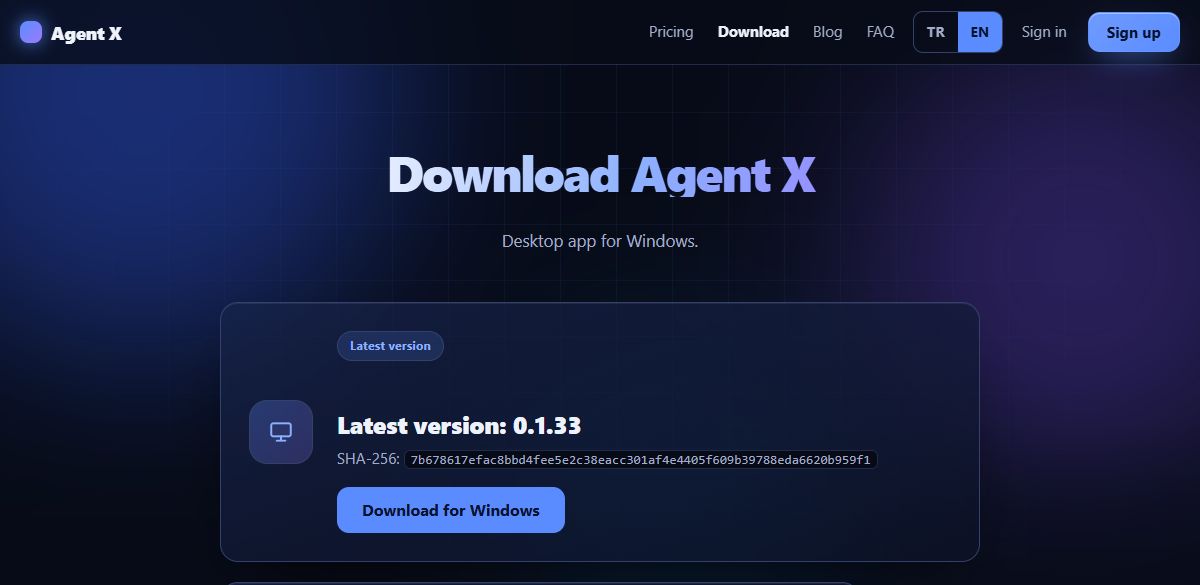
The Download page shows the link to the latest version and the file's SHA-256 value. After downloading you can compare the file's digest with this value to make sure it was not corrupted. In Windows PowerShell this command is enough:
Get-FileHash .\installer-file.exe -Algorithm SHA256If the output matches the page, the file is intact. Replace the file name with the name of the file you downloaded.
The Windows warning
The installer is not yet signed with a code-signing certificate. Because of that, Windows SmartScreen may show an "unknown publisher" warning and some antivirus programs may be cautious. This is not an error; it is a result of being unsigned, and the SHA-256 comparison above exists to give you confidence in exactly this case. Later updates are additionally verified with the publisher's digital signature and checksum.
3. Sign in
When you open the app you sign in with your site account. The app verifies your subscription and this computer. Then you open a project (a floor) and add agents to it. For the agents to work you need to connect your Claude or Codex account; the app shows this under Settings → AI Engines (AI Motorları).
First ten minutes: a checklist
Going through these in order makes the start easier:
- On Settings → AI Engines, confirm that Claude Code or Codex shows as "Connected".
- Open a project; the project becomes a floor in the office.
- Use "Add agent" to put a Team Lead in the project. For a small test a single agent is enough.
- Give the lead a small, harmless task, then open the agent's terminal and watch what it does.
- When the task ends, read the report; the verdict and evidence lines show that the work really finished.
After you have walked through this once, you have seen the basic loop of the app: give a task, watch from the terminal, answer approval cards, read the report. For the concepts in detail see Floors, agents and terminals.
Working offline
If the connection drops after you have signed in, you can keep working offline for up to 5 hours. When that time is over you need to reconnect and verify again. The agents' own Claude or Codex connection needs the internet separately; so the offline window is for the app's license check and does not mean the models work without internet.
Number of computers
How many computers you can use with one account depends on your plan: Lite 1, Pro 2, Max unlimited. You see and remove your devices on the My account page; at most 3 devices can be removed per month. If you want to add a new computer, remove the old one first.
Which computer to install on
Agents run commands on your computer and touch your files, so install the app on the computer where your projects already live. If you want to use it on more than one computer, check your plan's computer limit: Lite allows one computer, Pro two. Heavy work such as Studio needs a machine with an NVIDIA graphics card, but the agent team features run independently of the graphics card.
Updating
When a new version is out the app shows an update notice. The downloaded installer is verified with the publisher's signature and its SHA-256 value. Your data and settings are kept during the update. For what changed in the latest version see Release 0.1.33.
If you get stuck
- If you cannot sign in, check your email address, your password and your internet connection; if you do not remember your password there is a reset link.
- For the Windows warning, see the section above; do not run the file without comparing its digest.
- If something does not work as you expect, use the Suggestion / Complaint button at the top of the app: your message is tied to your account, you can attach a screenshot and you see the reply in the same place.
- For other questions there is the FAQ.
What comes next
Agent X agents work with your Claude or Codex account. To connect it, go on to Connecting your Claude and Codex account. If you want the general idea of the app, What is Agent X? gives a short introduction.