‹ Blog · October 13, 2026
Connecting your Claude and Codex account
The setup and sign-in steps for agents to work with your own Claude Code or Codex account, how to tell it is connected, and where model usage is billed.
Agent X does not sell model usage itself: agents run the Claude Code or Codex command-line tool on your computer, with your account. The Agent X subscription covers the app and the office layout; model usage runs on your own account. This post shows how to install those two tools, how to sign in and how to tell that they are connected.
The app interface is currently in Turkish, so screen names are given in English with the Turkish label in parentheses where it helps.
Why your own account
This arrangement has two consequences. First, the bill and the limits of the model you use stay on your own Claude or Codex subscription; Agent X adds no extra model fee on top. Second, you decide which agent works with which engine: in one project you can run the lead on a strong model and light jobs on a light model. You follow spending on the Cost screen (Maliyet) in the office; it shows how many tokens each agent spent.
Where to connect
In the app, the Settings → AI Engines tab (AI Motorları) shows which engine is installed and signed in on this computer. Engines connected through a subscription do not need an API key.
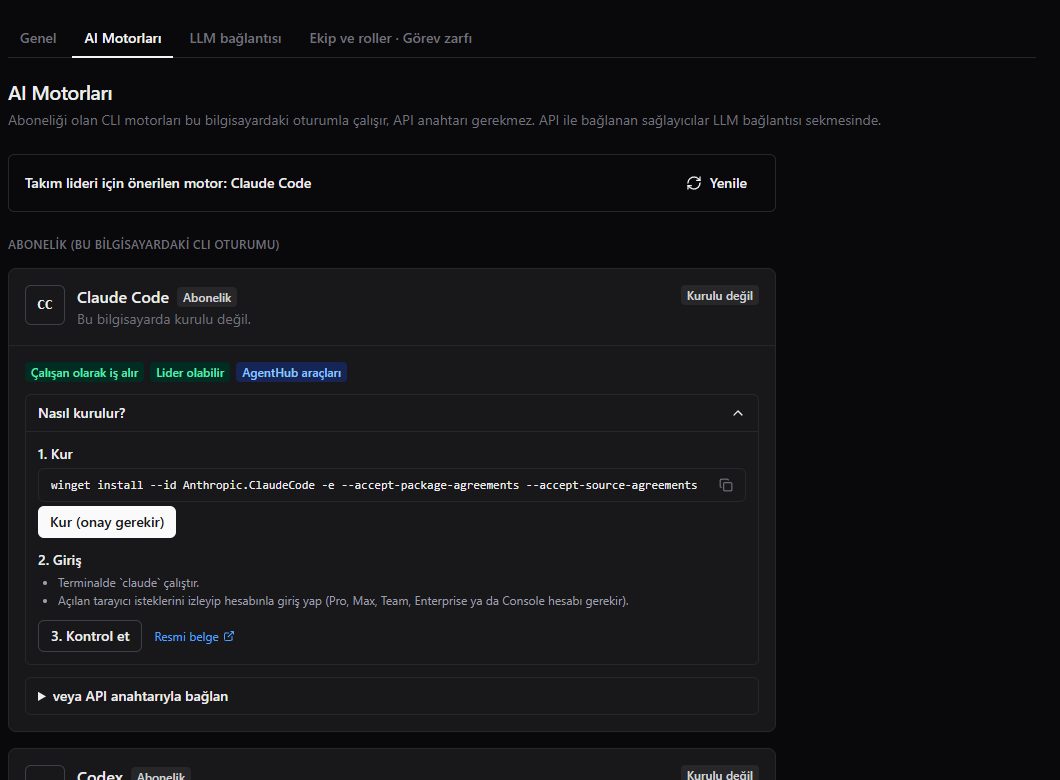
Claude Code
- Install. Run the command shown on the card; on Windows
winget install --id Anthropic.ClaudeCodeis used. The "Install" button in the app does this for you with your approval. - Sign in. Run
claudein a terminal, follow the browser steps that open and sign in with your account. The "Sign in (inside the app)" button in the app opens the same terminal within the app. - Check. Press the button and the status updates.
Codex
- Install. Run
npm install -g @openai/codex. For this, Node.js and npm must be installed on your computer. - Sign in. Run
codexin a terminal and sign in with the "Sign in with ChatGPT" option. - Check. Press the status button on the card.
How you know it is connected
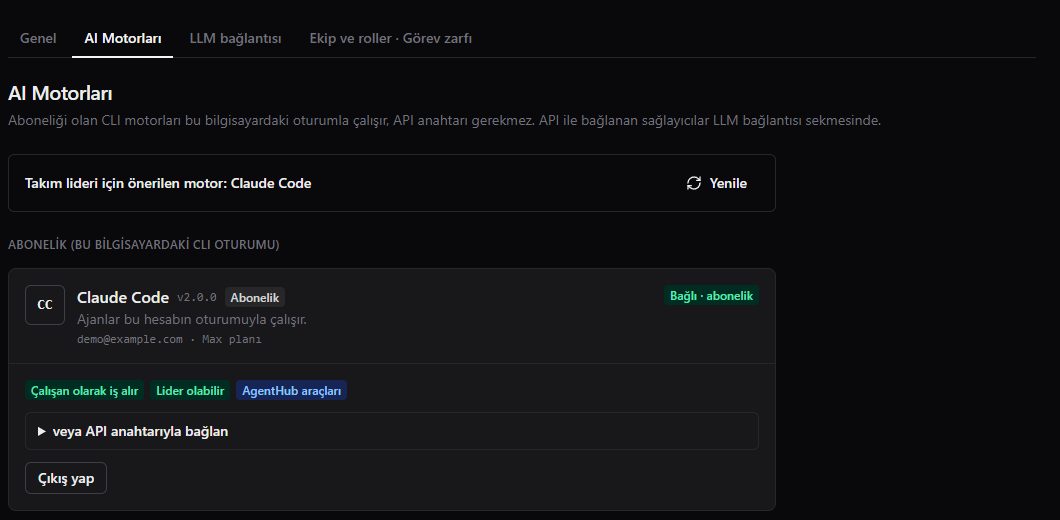
When sign-in is complete, the engine's card says "Connected · subscription" and shows which plan you signed in with. If the card does not look connected, press the status button once more; if it still does not, run the tool by hand in a terminal and make sure the sign-in step finished.
If you get stuck
- Command not found: a terminal that was open right after the install may not recognise the new command. Close the terminal, open it again and retry the command.
- The browser does not open: the sign-in step needs a browser. If your default browser is set and you have an internet connection, run the command again; the "Sign in (inside the app)" button starts the same flow inside the app.
- The card says "not connected": press the status button. If nothing changes, run the
claudeorcodexcommand by hand in a terminal and check that the session is open. - Using both engines: Claude Code and Codex are separate cards; you can connect both and give different agents different engines.
Which agent uses which engine
When you add an agent to a project you choose a role; the agent's engine can be Claude or Codex. The engine you connect applies to every agent that uses that engine. The ready-made YouTube and Trendyol roles come with the light model Haiku by default; you can change it if you want (YouTube and Trendyol agents). For how the agent team divides work see How the agent team works.
Watching spending
As agents work they spend tokens, and that spending is written to your Claude or Codex account. The app shows how much each agent spent today and this week on the Cost screen. After a busy day, looking at this screen is the easiest way to decide which agent should get a lighter model. The official usage page of your own account is the record kept by the service you are connected to; you can use the two together.
Other tools
The same screen also lists Gemini CLI and GitHub Copilot CLI; in this version they are only detected and are not run as agents. So seeing them on a card does not mean you can build agents with them.
Privacy and data
Agent X runs locally; your projects and files are not sent to this site's server. The agent's model, however, processes the data it reads while working under the terms of its own service. So before you put an agent on a sensitive project, check the terms of the Claude or Codex account you use. The session is only for this computer and for the personal use of the account holder; do not share your account with others.
Notes
- Install and sign-in need the internet. After sign-in, the engine's own connection also needs the internet while agents work.
- The app's license check is separate: if the connection drops you can work offline for up to 5 hours, but the agents' models cannot answer without the internet (Setup and first sign-in).
- After installing an engine, pressing the status button is enough if the app is open; you may not need to restart it.
Next step
If the connection is complete you can add agents to a project. The concepts of floor, agent and terminal are in Floors, agents and terminals. For plan limits see Plans and license.