‹ Blog · October 25, 2026
How the agent team works: lead, approval cards, reports
How a job flows through the Agent X office: the lead splits it, agents work in the terminal, risky steps are asked of you, and every job leaves a report.
In Agent X you are not chatting with a single AI; you manage a team with roles. This post explains how a job flows through the office from start to finish. In short: the lead splits, the agents work, critical steps are asked of you, every job leaves a report.
The app interface is currently in Turkish, so screen names are given in English with the Turkish label in parentheses where it helps.
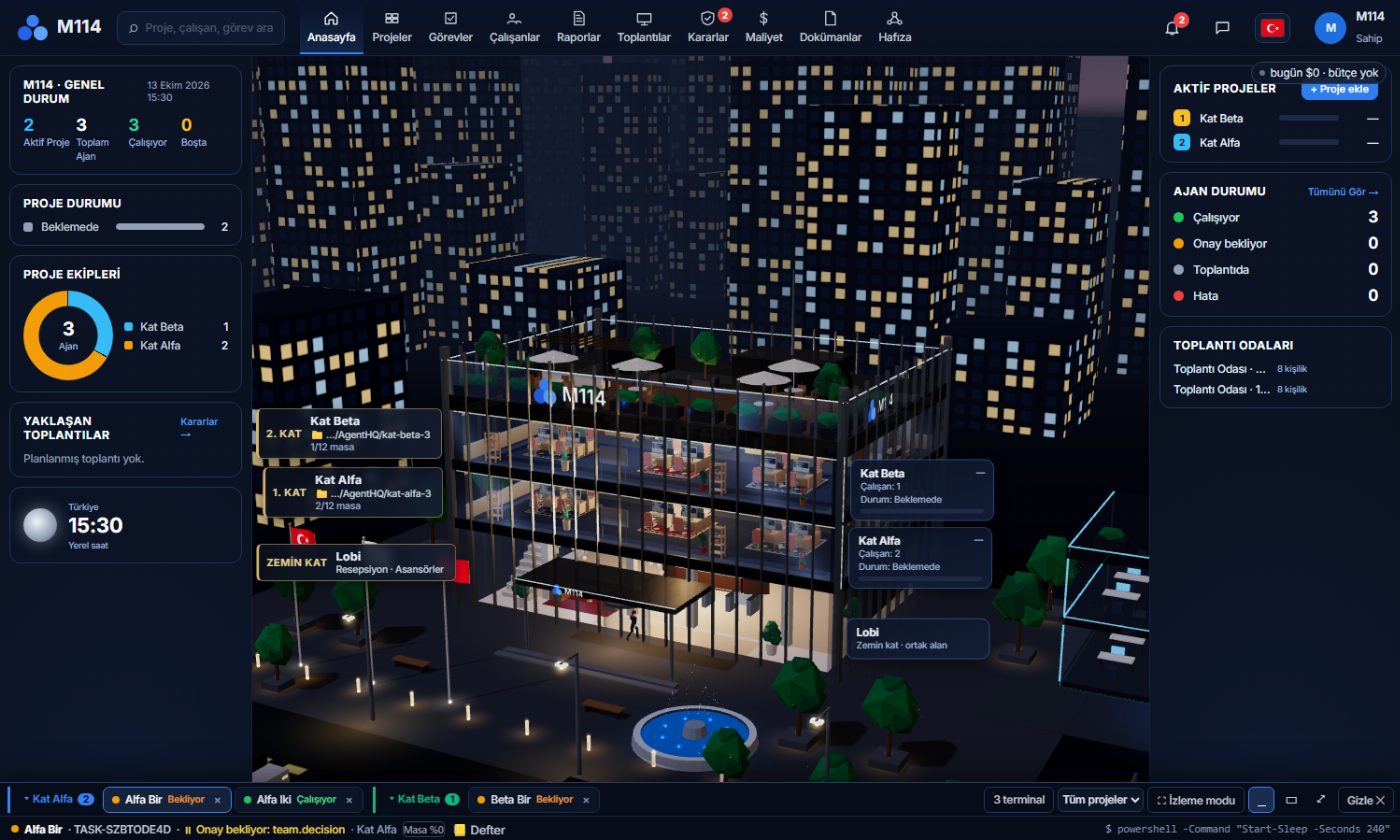
The team: roles
You add role-based agents to a project with "Add agent". The role list includes, for example, Team Lead (splits the work, hands it out and reports to you), Backend Developer, Frontend Developer, UI/UX Designer and QA / Test (real click tests, bug logs). There are also ready-made team templates; the agents added with one click for YouTube and Trendyol are an example (YouTube and Trendyol agents).
Every agent works with your own Claude or Codex account (connecting the account). You choose which engine goes to which agent.
The flow: how a job moves
- You give the work. Most of the time you write directly to the lead: "add this feature". The job becomes a card on the task board.
- The lead splits and delegates. The lead breaks the task into parts and hands them to the right agents. Agents can also hand work to each other.
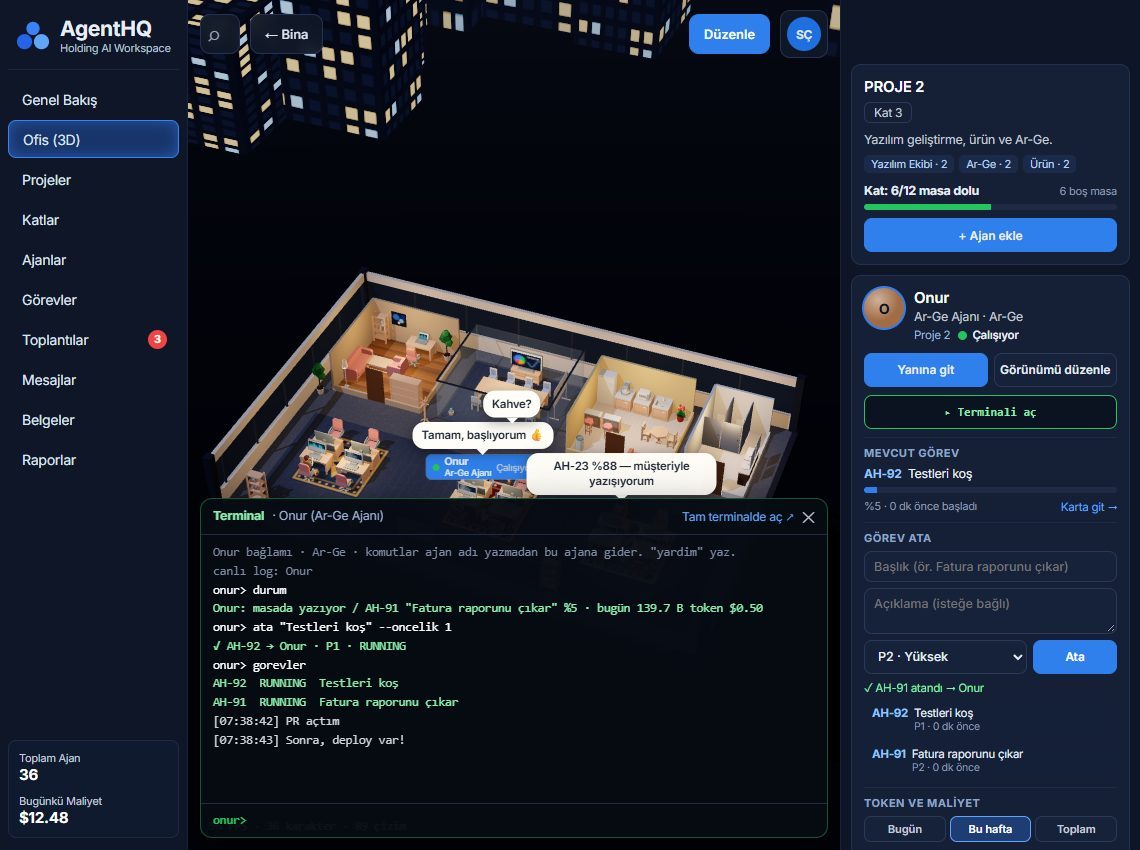
- Agents work in the terminal. Each agent has a real terminal. You can walk up to it at any time, watch what is typed live, and step in to steer. The number of terminals is limited by your plan (Plans and license).
- Risky steps are asked. If an agent wants to take a step such as saving an output to your computer or writing a public reply to a comment, an approval card lands on the Decisions screen (Kararlar).
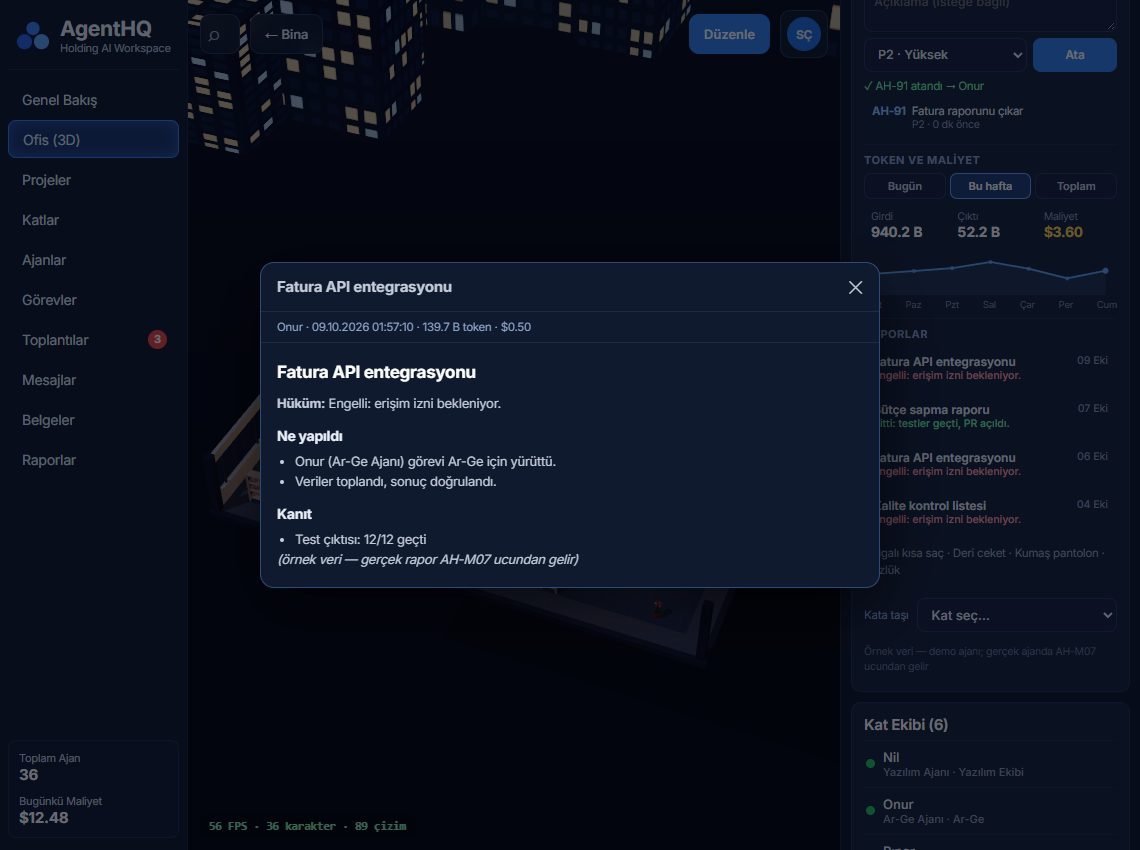
- The job leaves a report. When the task is done the agent writes a report: the verdict, what was done, the evidence and the risks.
How to read an approval card
The card shows four lines: What it will do, Why, What it changes and Risk (low, medium or high). Below it are the "Yes", "No" and "Add note" buttons; on some cards the option the agent suggests is marked with a "suggested" label. If an agent asks for an operation the program does not recognise, the card says so clearly ("this operation type is not recognised") and marks the risk high. Do not say "Yes" before you have read the card and understood what is being asked.
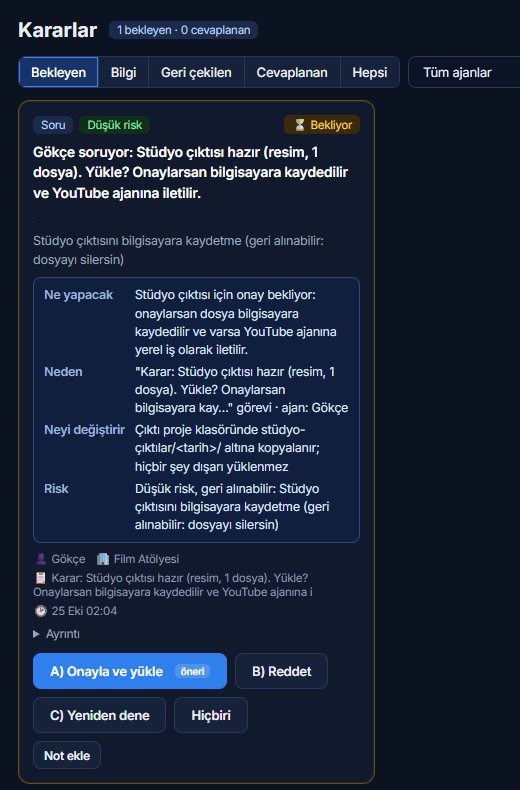
You can also look at the cards from your phone: the Android app lets you watch your office and approve decisions (on the Download page).
The terminal: real work
Whatever the agent is doing, you see it in the terminal: commands, output, progress. This is not a black-box chat. If you want, you can ask an agent for its status or give it a new task; so the terminal is like the team's shared workspace.
The report: closing the job
Every task closes with a result report. The report starts with the verdict; it lists what was done, the evidence and the risks. You can find reports again later on the Reports screen (Raporlar).
A fictional example
The following is not a real customer story; it is an invented example to explain the flow. A small business owner writes to the lead: "renew the price table on the product page". The lead splits the job in two: design goes to the UI/UX agent, code to the Frontend agent. The Frontend agent makes the change in the terminal and opens an approval card to take a change live. The owner reads the card, sees the risk as "low" and says "Yes". The QA agent tries the page with real clicks. In the end the lead writes a single report: what was done, what evidence there is, what risk remains.
Memory and scheduling
- Project memory: agents keep what they learn about a project, so you do not have to explain the same thing again next time.
- Scheduling: recurring jobs (for example a summary every morning at 09:00) are set up on the scheduling screen, can be switched off or run immediately.
- Cost: how many tokens each agent spent is shown on the Cost screen (Maliyet); since model usage runs on your own account, this screen is useful for knowing your bill.
When a team, when a single agent
For a small job a single agent is enough: building a team means extra coordination and extra tokens. For jobs with several parts (design, code and testing together) using a lead makes sense, because it hands out the parts and in the end one report comes to you. The number of terminals in your plan limits how many agents can work at the same time; see Plans and license for the plan limits.
Limits
Agents can be wrong. Approval cards exist for that reason, but reading the card is up to you. No matter how well an agent works, checking the output is your job. Also, as the team grows, token use grows; choosing a light model (like Haiku) for cheap jobs and a strong model for hard ones is a common approach.
Next step
For the relationship between floors, agents and terminals see Floors, agents and terminals, and for installing see Setup and first sign-in. When you are ready, create an account and download the app.