‹ Blog · October 25, 2026
Generating images and video on your own computer with Studio
Agent X Studio produces images and video on your own graphics card, not in the cloud. What it does, what it needs and where it is limited: an honest introduction.
Agent X 0.1.33 brought Studio: a section that generates images and video on your own computer, with your own graphics card. Because generation runs locally, you do not spend tokens on image and video prompts. This post says openly what Studio does, what it asks for and where it is limited.
The app interface is currently in Turkish, so screen names are given in English with the Turkish label in parentheses where it helps.
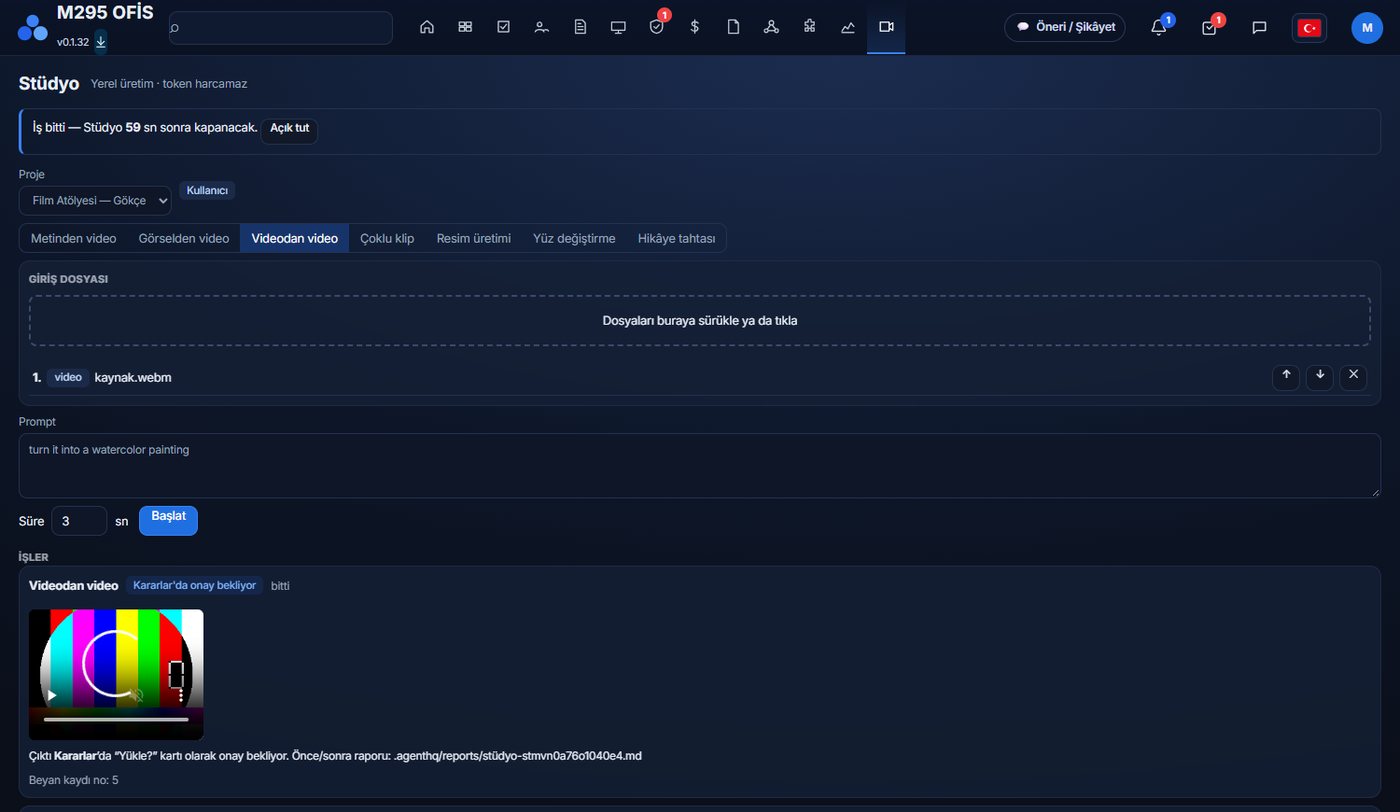
What Studio does
The Studio screen has seven generation types:
- Text to video: you write a prompt and get a short video.
- Image to video: you animate a picture you already have.
- Video to video: you transform an existing video with a prompt (for example into another style).
- Multi-clip: generates clips from an ordered list of images and videos; if you want, you join them into one video at the end.
- Image generation: an image from text.
- Face swap: not available in this version; the license of its base model does not allow commercial use (see the license section below).
- Storyboard.
Joining is done by the ffmpeg that ships with the app. Outputs are saved in the project folder, in a folder separated by date.
How a job runs, step by step
- From the Add agent screen you add the "Studio Creative" role to your project with one click. The Studio tab appears in the top menu while the project has this agent.
- You choose the generation type and drag and drop the input files (or click to pick them). In multi-clip you order the list with the up and down arrows or by dragging.
- You write the prompt and press Start. While the job runs you see the progress and can cancel.
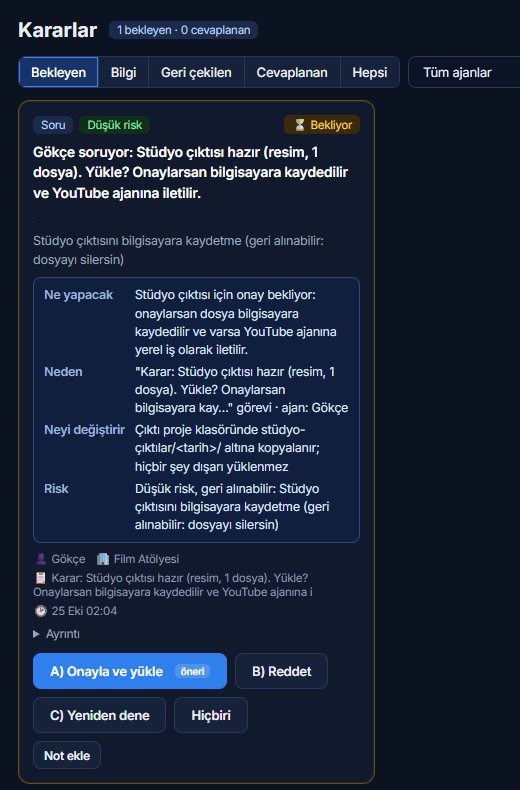
- When the job ends a preview appears and an approval card lands on Decisions (Kararlar).
- Sixty seconds after the job ends the Studio tab closes; the countdown is visible on screen and the "Keep open" button stops it from closing. You reopen the tab from the menu.
In multi-clip, if you write the prompt yourself the app does no extra analysis. If you choose to have the lead or a researcher agent write the prompt, the agent looks at representative frames of the image or video, proposes a prompt, and you edit and approve it. Because an agent runs on this path, it spends tokens; the generation itself does not.
Agents use the same models
Even if you never open the Studio screen, your agents can use the same local models with tools such as gorsel_uret (generate image) and video_uret (generate video). So a lead who says "prepare a short promo clip for this product" can hand the job to the agent in the Studio Creative role.
The output is asked about first
When Studio finishes a job it does not send the output anywhere on its own. An "Upload?" card lands on the Decisions screen: you see the preview, and if you approve, the file is saved to your computer and, if there is a YouTube agent in the project, handed to it as a local job. You can reject it or try again. A before/after report is also written for each job; the model used and how long it took appear there.
The prompt should be in English
Generation models give the best results with English prompts. If you write in Turkish, Studio shows a translation panel and asks who should translate: the local model (free), Opus or Codex (these spend tokens), or send it as is without translating. For an option that spends tokens your approval is asked first, and you can ask it to remember your choice. The interface and reports stay in Turkish.

What you need
Local generation currently works only on Windows with an NVIDIA graphics card. On a computer without an NVIDIA card Studio refuses to install the models. The card's video memory (VRAM), RAM and free disk are also checked; before installing, the screen says which model fits your machine. For the numbers and card recommendations see Graphics card for Studio and low memory mode.
Models are large: a single model asks for up to tens of gigabytes of disk. You can choose where to download them: Choosing the model folder and managing models.
Safety limits
Some limits in Studio cannot be switched off: generation for impersonation and political forgery is refused. Sexual or demeaning images of real people without consent and sexual content involving minors are never generated. All outputs get "AI generated" metadata, and who generated what, when and with which model is recorded in the audit log; the content of the prompt is not written to the log.
This filter is a rule-based text check; it does not analyse the content of the image you upload. So it is not a perfect protection, it is a layer. Responsibility lies with the person generating.
License warning
The standard models in Studio are licensed for commercial use: Wan 2.1 and FLUX.1 [schnell] are Apache-2.0 licensed. Models that are not licensed for commercial use (for example Qwen-Image based models and FLUX.1 [dev]) are not part of the standard product. The list of model licenses is in the "Third-party model licenses" section of the terms of use; you should still check the license for your own work.
An honest note: this is a new feature
Studio's workflows were tried end to end in a test setup, with a fake generation engine and a real ffmpeg. Real generation was not tried on every graphics card and model combination; the quality and speed of results vary with your card and unexpected errors may appear in the first version. If you run into a problem, reporting it with the Suggestion / Complaint button in the app helps a lot.
Next step
Studio ships with 0.1.33. You can get the latest version from the Download page, and for the detailed change list see Release 0.1.33. For plans and limits there is Plans and license.