‹ Blog · October 25, 2026
Choosing the model folder and managing models
Studio models take tens of gigabytes. Choose which drive they download to, and move, delete or open the folder of an installed model.
Studio uses local generation models and these models are large: according to the numbers in the graphics card post, a single model means a download of ten to twenty-three gigabytes. If your C drive is small, that can be a problem. With Agent X 0.1.33 you can choose the model folder yourself and manage installed models.
The app interface is currently in Turkish, so screen names are given in English with the Turkish label in parentheses where it helps.
Where to find it
Under Settings → AI Engine & Software (AI Motor & Yazılım) there is a "Local generation models" card. At the top of the card you see your graphics card, your driver version, your RAM and your free disk. Below it the models are listed; next to each model you see its type, license, download size and the free disk it needs.
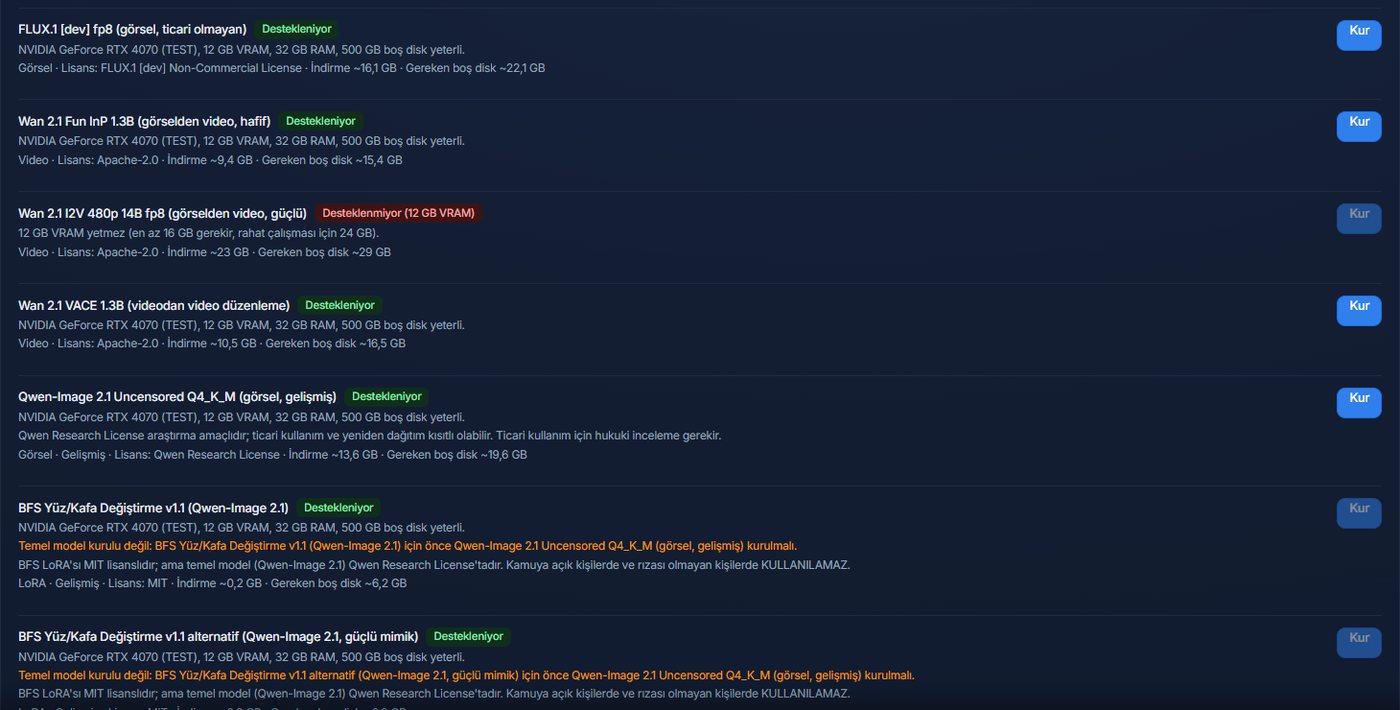
Choose the folder before installing
The card has a Model folder field. Here you type the full path of the folder the models will download to, for example an empty folder on another drive. Then:
- Say Save; the setting is stored.
- Say Back to default and the setting is removed, so the models go to the app's own folder again.
- The setting affects only new installs. Models you installed earlier stay where they are.
- The "Install" window says which folder the model will go into and its size; you can check before installing.
- If the folder does not have enough free space, the install does not start and says why.
The folder you type is validated. It must be a full path (for example D:\Models); the root of a drive or Windows system folders are not accepted, and the folder must be openable and writable. The app's ComfyUI package, ffmpeg and the extra nodes it needs always stay in the default place; only the large model files go to the folder you chose.
If a download is interrupted it resumes where it stopped, and each file is verified with its checksum (sha256) after downloading. A file that already exists elsewhere (several models can use the same file) is not downloaded again.
Manage an installed model
Next to an installed model three buttons appear:
- Open folder: shows the model's file in Windows Explorer.
- Move: moves the model to another folder. The files are copied to the target, verified with sha256 and, when verification passes, the old place is deleted. If verification fails, the old place stays as it was. The target folder is checked for free space, path and write permission.
- Delete: removes the model from disk and asks for confirmation. Files shared with another model stay in place; so deleting one model does not break another.
If a problem happens during a move or delete, the reason for the error is written on screen.
Step by step
- On Settings → AI Engine & Software, scroll down to the "Local generation models" card.
- Type the full path in the "Model folder" field (for example an empty folder on your second drive) and press Save.
- Press Install next to the model you want to install. The window that opens states the target folder and the model size; confirm if correct.
- Follow the download progress on the same card. When it ends, the model gets the "Installed" label.
Disk maths and dependent models
The "Free disk needed" figure in the list is larger than the download size because extra space is needed during installation. If you gave the model folder to a separate drive, the model size is checked against that drive's free space; only the app's own components need space on the main drive.
Some models depend on another model; for such an add-on, if the base model is not installed, an "install this first" warning appears next to it and the Install button stays off. The same warning also reminds you of the license: even if the add-on's license is permissive, the base model's license applies. All models in the standard version have licenses that allow commercial use.
Tips
- Choosing a large, fast SSD shortens load times; models are read from disk during generation.
- Start with a small model first. In the list in the graphics card post you can see how much space each model takes.
- Check the licenses: each model's license is shown in the list; the models in the standard version allow commercial use.
- If you change the folder later, you can bring your old models to the new place with "Move".
- You do not need a backup before choosing a folder: a move does not delete the old file until verification passes at the target.
- Use the Windows format when typing the path (for example
D:\Models); a full path on a local drive is the safest choice rather than a relative path or a network path.
Limit
This feature is for Windows and for computers with NVIDIA cards. Choosing a folder and moving make sense on the machines where local generation already works. The folder selection, move and delete flows were tried with real clicks in a test setup; downloading and running the large models on a real high-memory card has not been tried yet.
Next step
For the full list of changes see Release 0.1.33; to get the app, the Download page. If you run into a problem, use the Suggestion / Complaint button in the app.