‹ Blog · October 28, 2026
Remote generation: video without a GPU in your computer
Agent X's experimental Remote generation: you connect your own HyperAI account, video is made on a remote graphics card; setup wizard, models, cost confirmation, limits and honest caveats.
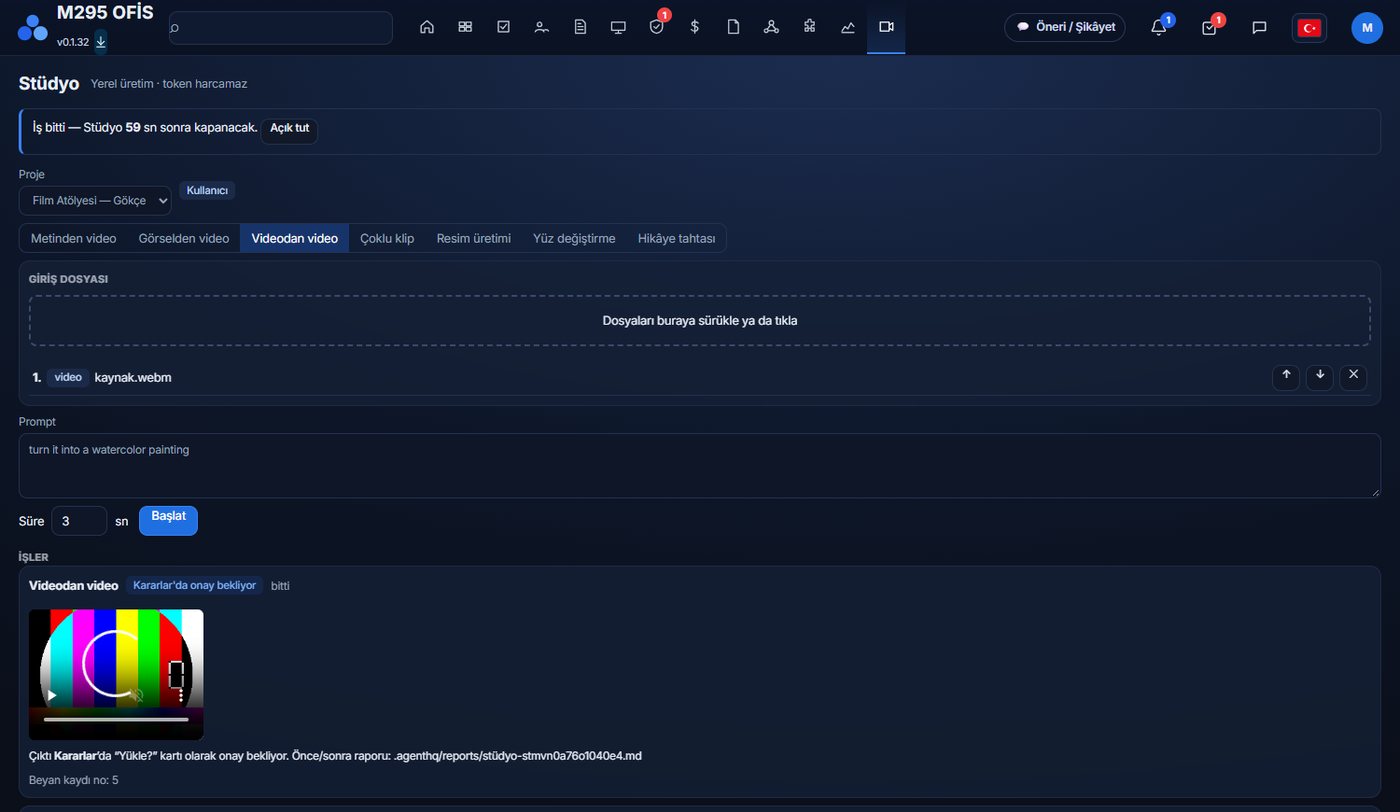
Studio generates images and video on your own computer, with your own NVIDIA graphics card. What if you do not have a strong card? Since 0.1.39 Agent X has Remote generation: you give an image and a short description, the video is generated on the graphics cards of a cloud service called HyperAI, and it lands as an MP4 in the uretim folder of your project. You pay as you use it; before every job you see the estimated amount and confirm it.
Let us say it up front: this feature is experimental. Below we write separately what was tried and what was not.
How it works
HyperAI is a separate company and the account is yours. Agent X does not open an account for you and does not store your password or key. You open your own HyperAI account, add balance and sign in from Agent X. Generation runs on that account's resources; the charge is written to your account by HyperAI directly. The feature is not built into the Studio screen: you use it from the Settings → HyperAI card.
The setup wizard
The wizard that arrived in 0.1.42 goes through numbered steps in the HyperAI card in Settings. Next to each step you see ✓ (done) or ✗ (missing), the result of a real check; when everything is done a Ready badge appears. When the wizard is reopened, only the missing steps stay open.
- HyperAI account: you open your own account and add a few dollars of balance.
- Python 3.9 or newer: needed to install the HyperAI command line tool.
- HyperAI CLI: if missing, the "Install" button installs it into Agent X's own folder; it touches nothing else on the system.
- Sign-in: with "Sign in in the browser" you confirm on the HyperAI page. The key is not stored in Agent X. If the browser does not open, a copyable command is shown that you create the key for in the HyperAI console and run in your own terminal.
- GPU resources: your account is checked for the required resources.
- Optional, Cosmos models: only if you will use Cosmos, a one-time download of about 13 GB (about 0.05 $, and always through cost confirmation).
If the session drops, you no longer see raw Chinese error text but a plain message and a prominent "Sign in in the browser" button (0.1.40). The raw text stays under "Details" only.
Which model for what
As of 0.1.42 the card has a model choice. Wan 2.2 is the default.
- Wan 2.2 (14B): human motion and expression; fast. RTX 5090 or H100.
- Cosmos Predict2 (2B): physical scenes, vehicles and object motion; at most 5.8 s, 480p or 720p.
- Wan 2.1 720p: sharp image, slower than Wan 2.2.
- LTX-2.3 turbo: fast and with sound; H100 only.
- MiniMax H3: highest quality, with sound; always 2× H100 and expensive.
The duration is at most 1 minute for every model. Videos longer than a model's single-run limit are produced in chunks and joined; each chunk continues from the last frame of the previous one. As the number of chunks grows, small drifts in the picture can build up.
Cost confirmation and caps
No job starts without confirmation. The confirmation window shows the resource, the hourly rate and the estimated amount. Resource prices are the values HyperAI publishes and can change: RTX 5090 is shown at 0.35 $ per hour, H100 at 1.80 $ and 2× H100 at 3.60 $. Waiting in the queue does not cost anything.
There are also spending caps per job and per month. The default single-job cap is 5 $; a job above the cap is not opened and you raise the cap yourself. This matters especially for long MiniMax H3 jobs: a one-minute H3 job can cost about 4–12 $, and that is an estimate. So that forgotten jobs do not burn money, a job that exceeds its time limit while queued or running is stopped.
If all RTX 5090 cards are busy, HyperAI can drop the job as "could not be scheduled". That is not a program error and no charge is made; Agent X says so in plain language and suggests the H100 (about five times more expensive).
Safety: the gate that cannot be turned off
Remote generation passes through the same safety gate as local Studio. The limit on face swapping and on content involving minors cannot be turned off or bypassed; every path, new models included, goes through the same audit log, the per-job and monthly caps, and the cost confirmation. Use only your own images or images you have permission to use. Generating video of a real person without their consent, or sexual or deceptive content, is prohibited.
Licences
Every model has its own licence and this post does not make a legal assessment. Read each model's licence text yourself before using it. For example, LTX has a paid-licence condition for organisations above a certain annual revenue; for MiniMax H3, secondary sources say there are restrictions in some countries and we could not verify that. Do not go to commercial use without checking the official text.
What was tried and what was not
- Tried by hand on a real GPU: Wan chunked generation with a 10-second video on a single H100 (166 s, about 0.08 $); LTX and H3 test videos (for H3, 5 s, 544p, about 11 minutes and 0.70 $).
- Not tried: a real GPU job was never opened end to end from inside Agent X in this version. The Wan 2.1 path was never run; Cosmos, LTX, H3 and chunked Wan were not tested through Agent X.
- Not measured: the cost estimates for Wan 2.1, LTX and Cosmos.
So we are not saying "every path works." We are saying: the interface, the setup, the cost confirmation and the safety gate were tested with a fake server and partly with a real account; real generation results can vary with hardware, queue and model. If you hit a problem, report it with the Suggestion / Complaint button in the program.
Next step
First look at the 0.1.34 to 0.1.42 summary, then open the card in Settings and follow the wizard. If you prefer local generation, the graphics card post explains what to expect from which card.